
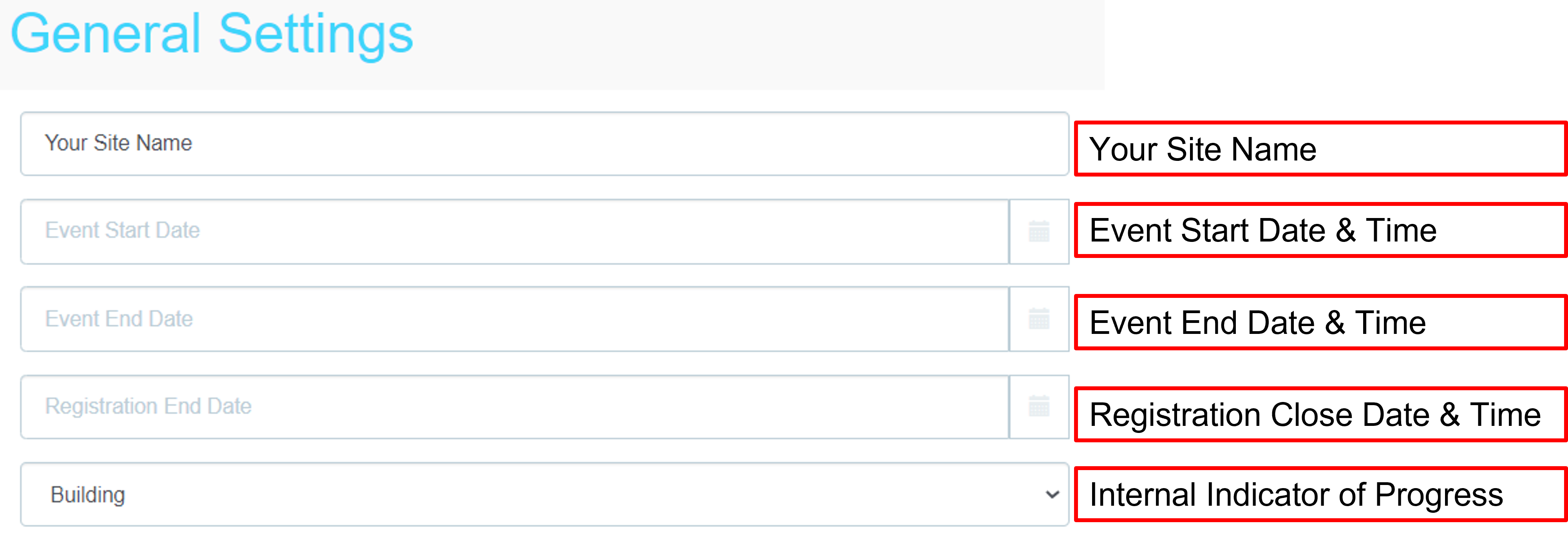
- Site Name: This can be modified by changing the text input into the free response text box
- Event Start Date: Click the calendar icon to adjust the event start-date and time
- Event End Date: Click the calendar icon to adjust the event end-date and time
- Registration End Date: – This is the date that you want registration to close on the site and will prevent individuals from beginning new registrations.
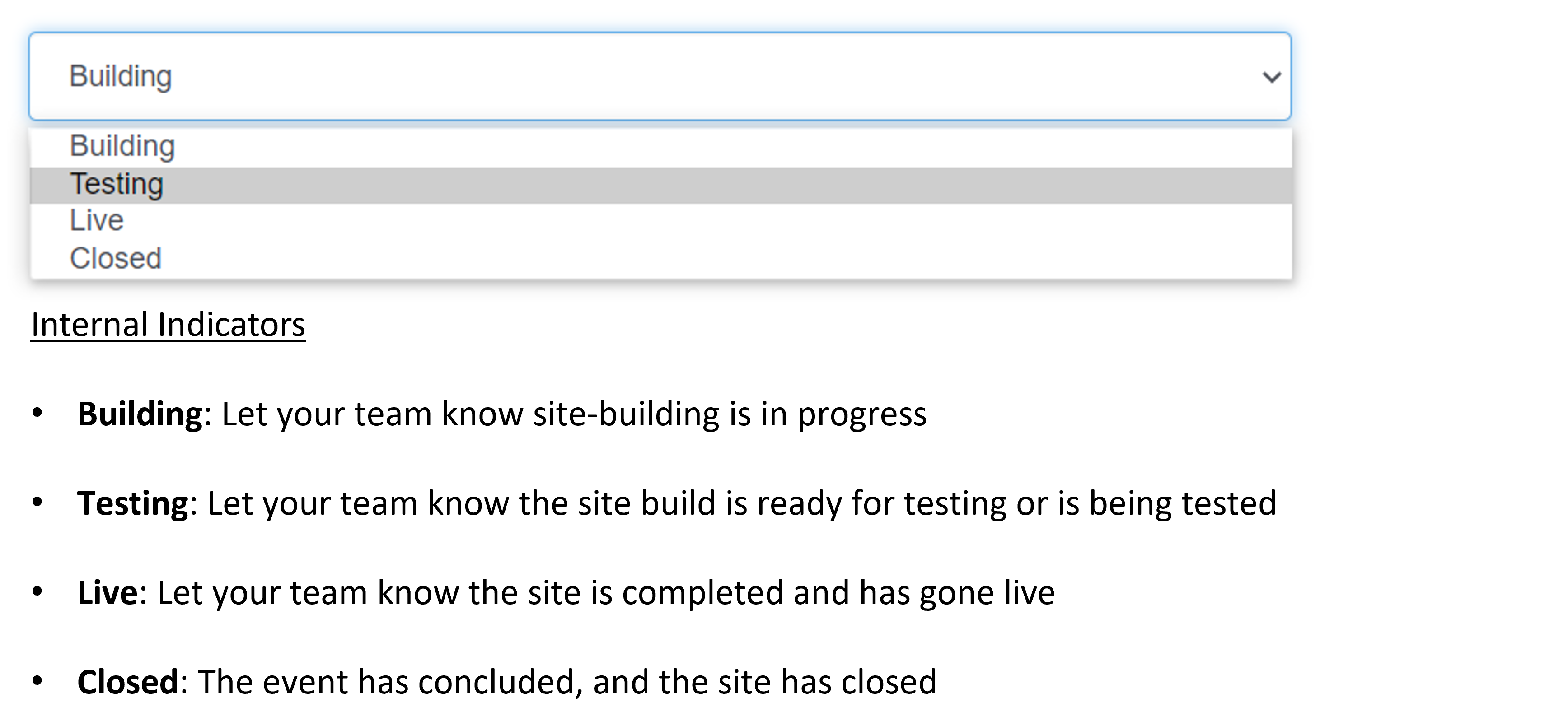
- Dropdown Set Status – choose between Building/Testing/Live/Closed. These options are ONLY for internal reference with all admins working on the site. Changing the dropdown status does not affect the functionality of your site.


Allow Schedule Changes on close?
Check-mark to allow registrants to modify existing registrations after the Registration End Date.
Allow Paid site?
Check-mark if including activities with monetary value attached to them and expecting to receive money from registrants via check, credit card, invoice, or cash on-site.
Use 24 hour time?
By default, time displays using AM/PM format. Check-mark to change the format to 24-hour time instead (i.e. 1700 hours). This will impact the dates on your site and activities.
Allow use of ongoing activities?
Check-mark to enable reoccurring shifts over a length of time (i.e every Monday from 10am-11am, Feb-May). Contact your account rep. for assistance if unfamiliar with this feature.
Enable Text Messaging Service (SMS)
Check-mark to send SMS/text communication to registrants and/or users on a specific site. If text messaging is included in your existing contract, you MUST check-mark this in order of that communication to work.
If you do not have text messaging included in contract but want the ability to send registrants texts (emergencies, cancellations, provide critical information urgently, etc.), contact your account rep. to determine next steps. This option will only impact clients with text messaging in their existing contract. Check-marking this without text messaging included in-contract will not enable text communication to users/registrants.
Disable Welcome Emails?
Welcome emails send immediately after someone creates an account on your site, not when they complete a registration on your site. Check-mark this to disable welcome emails from sending after a new user creates an account.
When a new user account is created (by providing an email, first + last name, and password), they are added to your stored list of user accounts within your admin dashboard. Disabling welcome emails does not impact a user account and is typically can eliminate confusion for registrants who believe they have completed a registration.
Disable Confirmation Emails?
Confirmation emails send immediately after someone successfully completes a registration and reaches the confirmation page on your site. Confirmation emails automatically include the registrants schedule of registered items and any information, next steps, and custom wording input by you.
Disabling confirmation emails means that registrants will not receive confirmation that they have completed registration, nor will they be able to view what they have registered for. If they modify their schedule at a later point, they will not receive an updated confirmation of their current schedule.
It is highly recommended by myTRS reps that the majority of clients do not disable confirmation emails. If deciding to temporarily disable confirmation emails, remember to uncheck this option when done. Instances where disabling confirmation emails makes sense include scenarios such as:
-
- You do not want to send confirmation emails until registrants have been reviewed + approved
- You are adjusting registrations and do not want registrants to be confused by the emails
If deciding to temporarily disable confirmation emails, remember to uncheck this option when done.
Show Site on Dashboard:
This option will show any existing user across any of your sites that the site is an available event to register for. Your existing users will have access to visit the site and begin a new registration easily.
Check-mark this only when...
- Your site is fully built, tested, and actively going live to the public for open registration.
- You understand that any and all users within your user accounts list who are logged into their account (across any of your sites) will have visibility to see the site as available to register for.
- You want to influence and/or increase registrations across multiple sites
Do Not Check-mark this if...
- Actively building/editing the site and have not opened the site for registration
- If the site is not intended to be seen by the general public (only certain individuals have access)
- If you do not want the site visible to users and registrants on any of your other sites.
- The site is now closed for registration and has exceeded dates for actual registration.
- Your site has recently been cloned but has not been updated to reflect current changes nor is live
In a somewhat similar format to the myTRS dashboard , a user dashboard includes all of your site cards that the user has signed up for, as well as any events that are available to register for presently.
Below is an example of what a user's dashboard will look like:

Hide event dates on welcome page and emails
If your site doesn't have event dates, we recommend hiding the dates from the welcome page and confirmation email to avoid confusion.
Generate a QR Code in confirmation email:
If you are planning on using QR code scanners on site for check in, you can turn on the QR code feature. TRS will generate a QR code in the confirmation email. Please inquire about our onsite scanner partnership with ATS.
Enable admin confirmation email:
If admins wish to receive a CC confirmation email for all completed registrations.
Allow Assignments? and Allow Time Tracking on Assignments?
Consult with TRS before turning on this feature. Assignment will allow you to pair registrants’ time slots with an organization, another person, and categorize to track hours for the pair.
Comments
0 comments
Please sign in to leave a comment.