TRS text feature is an additional option and costs $150 for 15,000 text messages.
Please contact us if you wish to use it and we will send you a contract addendum.
If you already added this option to your contract, please read instructions below on how to use it.
As soon as we receive your payment, your TRS team will add text credits to your account.
You will then need to go to General Settings and check "Enable Text Messaging Service" box.
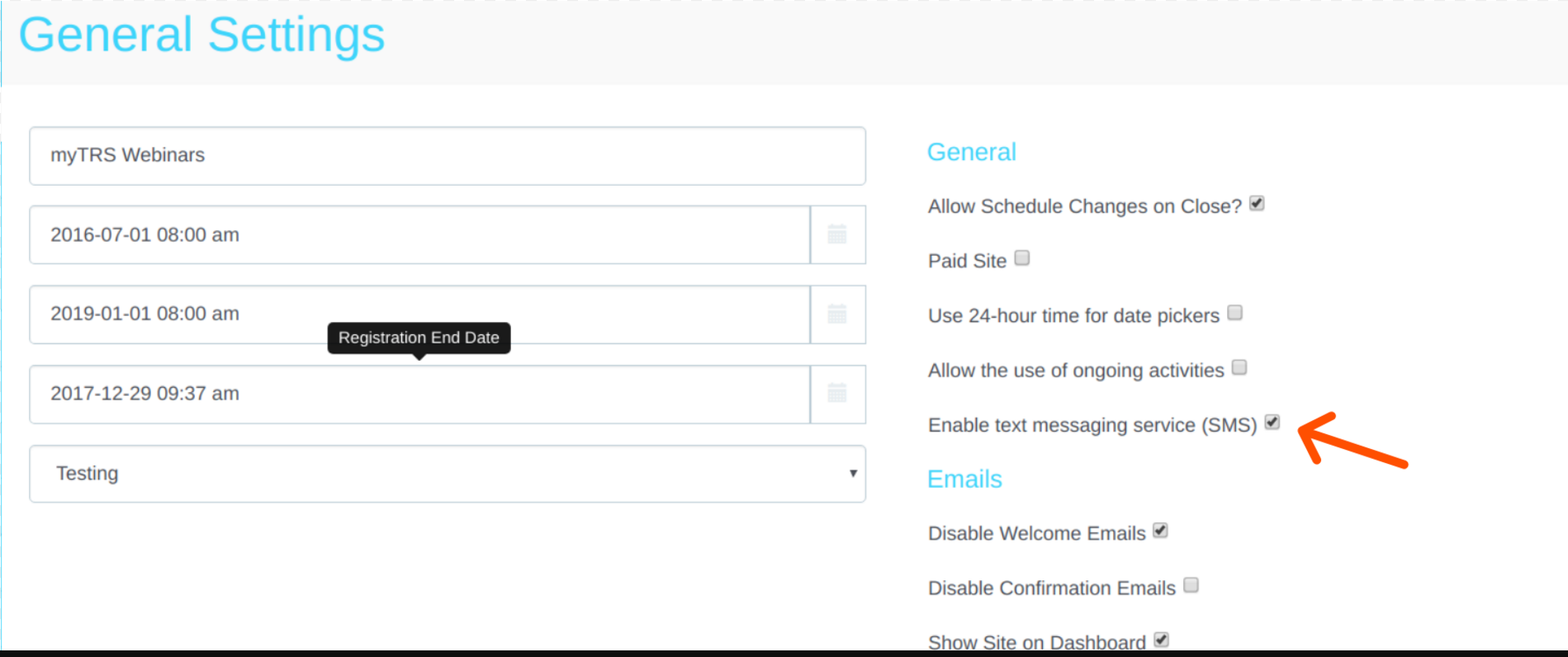
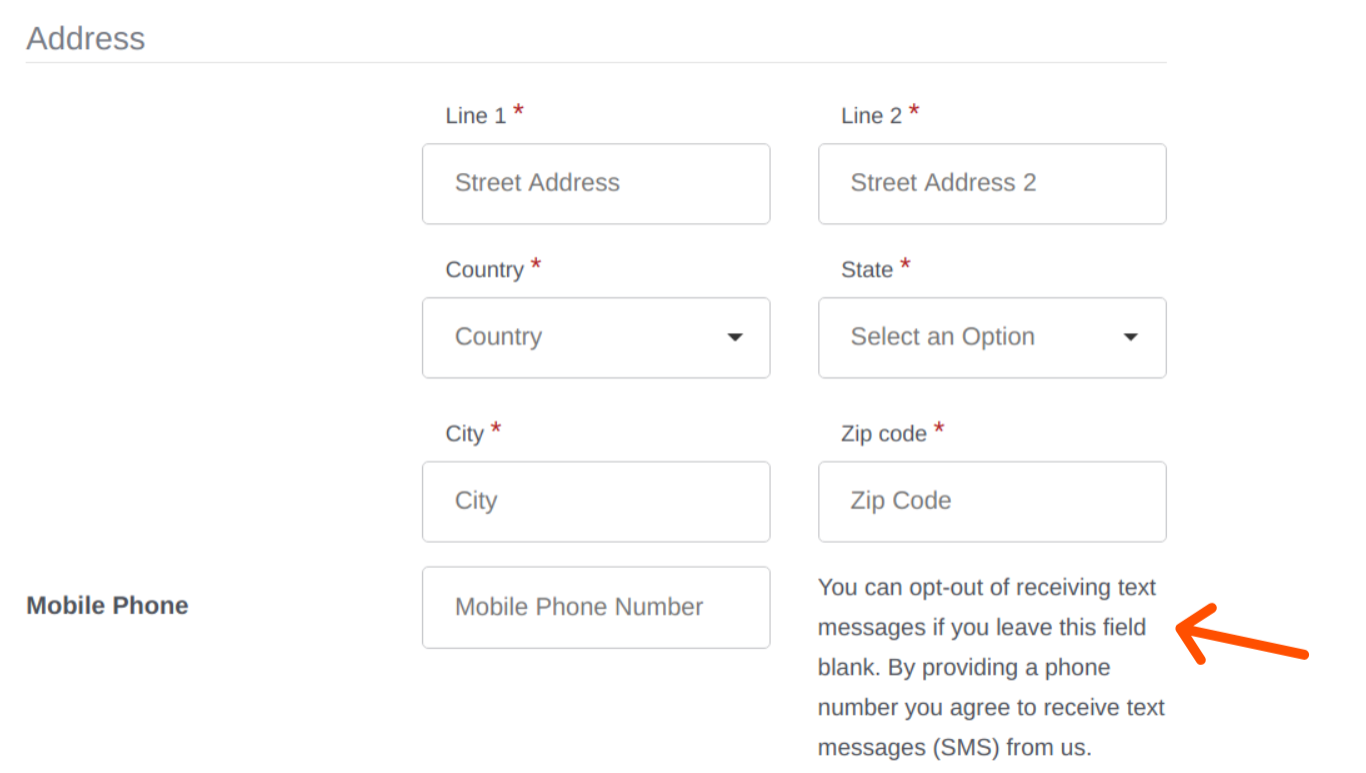
As soon as it is turned on, a new field will appear on the front end to collect mobile phone numbers.
We added instructions explaining that the field is optional.
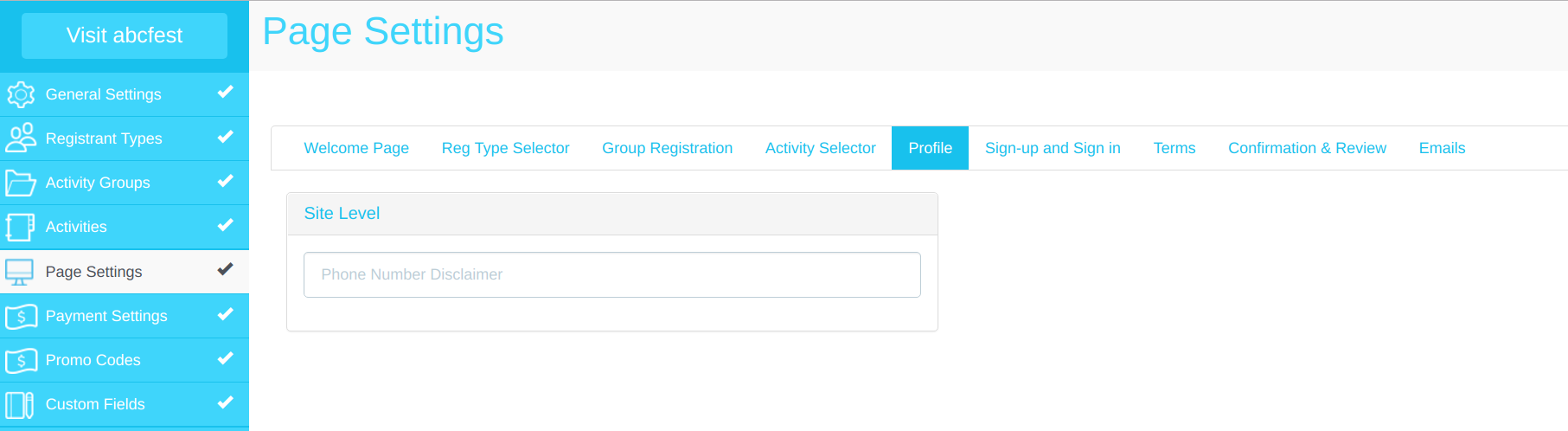
You can customize the wording by going under Page Settings - Profile tab and enter your instructions.
To send text messages, go to "Registration Report"
Under Display, select a larger number than your total number of registrants
Click on the empty box next to ID header
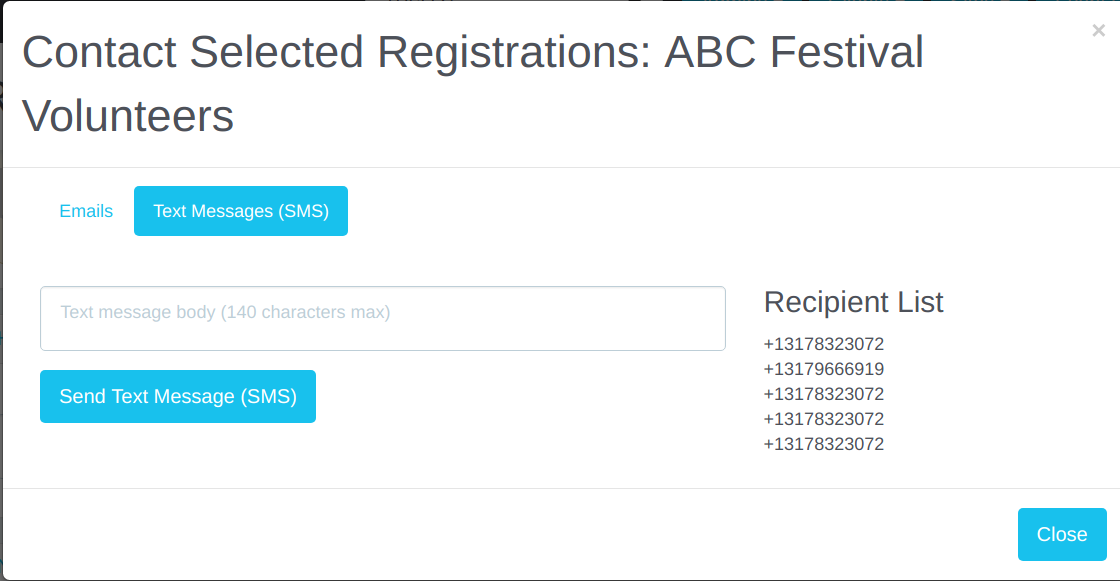
Click "Contact Selected"
So far these steps are the same steps you would take to send an email
Select "Text" tab, type your message and click "Send"
Important Information
Please note that it is best to turn on the text message option before your go "live" with your site if you want to collect as many phone numbers as possible.
Adding a mobile phone number to receive Text Messages, can't be required. Registrants have to opt in to receive messages from your organization.
It is recommended to send text messages as you get closer to the event and use it for critical information.
Comments
0 comments
Please sign in to leave a comment.