TRS allows you to create other admin accounts and set the different levels of access.
To get started, go to Admins at the top right of your screen.
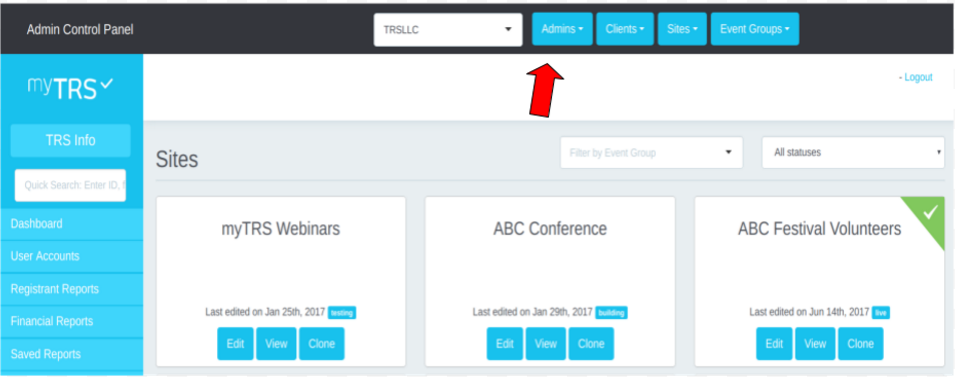
Click "Invite New "
Enter The name and email address then click the tab "Role and Access"
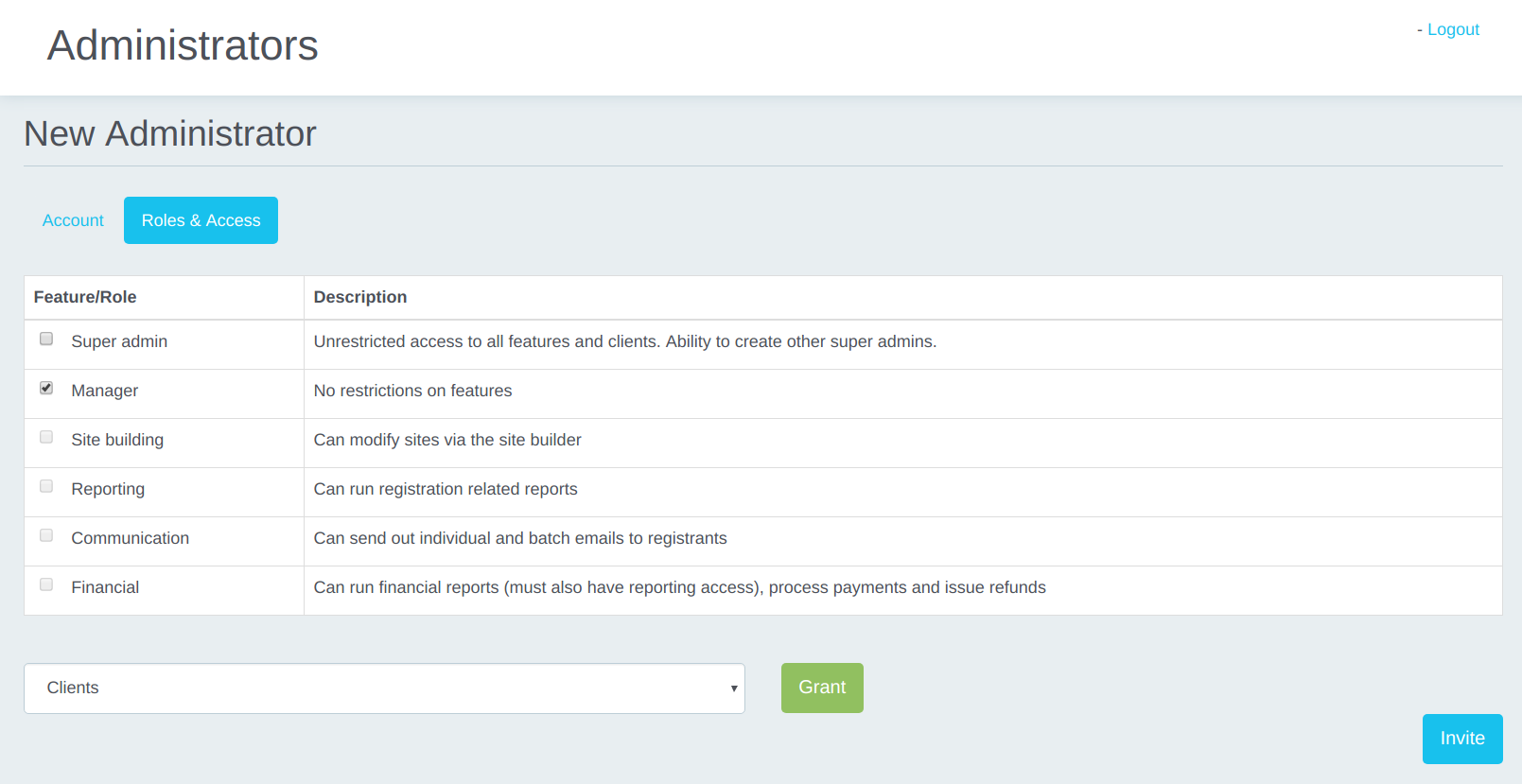
You will be presented with the different options for access and the description of what each of them allows. Manager is the highest level of access for clients and the only access that allows to create new registrants accounts from the admin side.
If you do not wish to give Manager access, you can select one or more access options.
You will then have to Select the Client on the list. Most likely, only one option will be on the list for you.
Click "Grant."
If you want to give the admin access to all of your sites, then you are done, simply click on Invite to send the invitation to set up the password.
If you want to give access to a subset of sites/activity groups or activities, follow the process to unlock more options. Note, if you gave manager access, they have by default access to the entire site and you will not have the option to select activity groups and activities.
Select a site - click "Grant"
Select an activity group - click "Grant"
Select another activity group if needed and click "Grant" or select an activity below the first activity group and click "Grant."
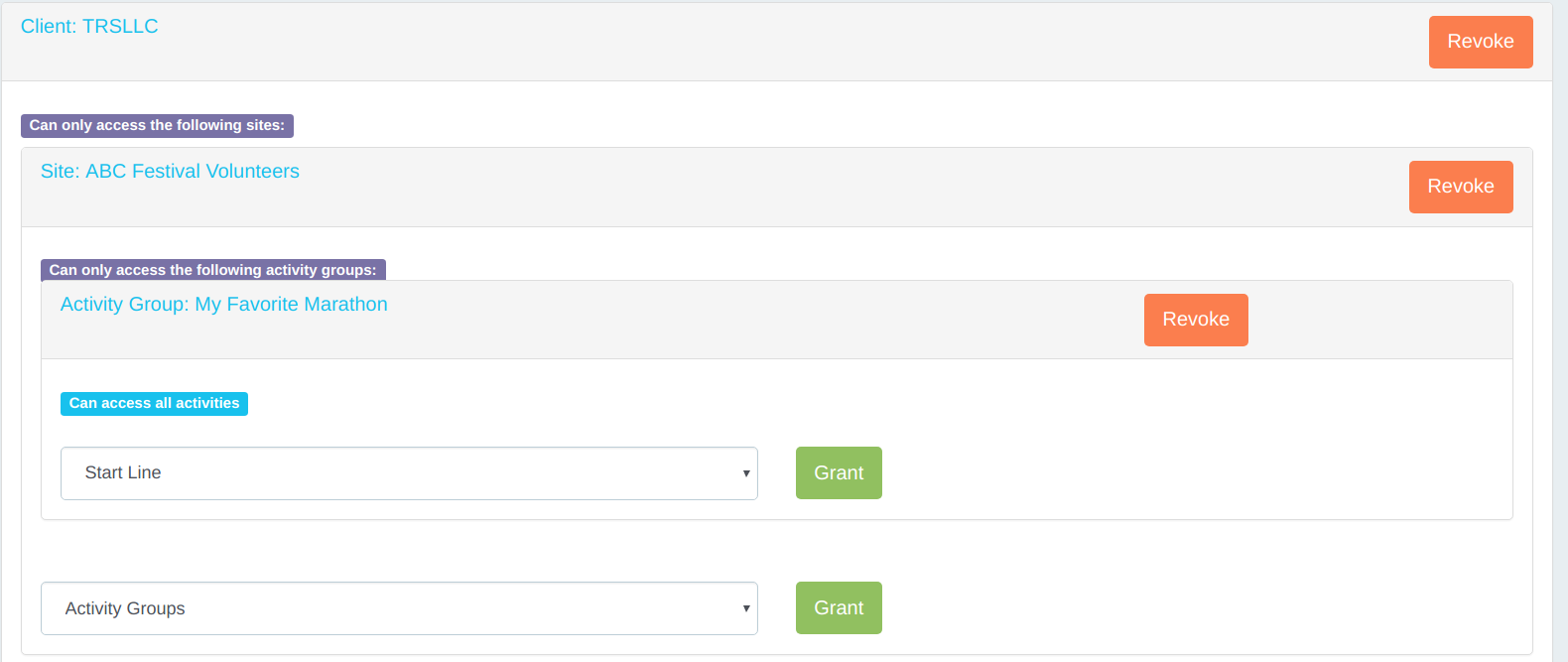
Once you are done, click "Invite" at the bottom right corner of your screen.
*Recommendations*
- Only give manager access to admins you will have time to train properly on how to use the system.
- If admins do not receive the invitation email, they can always click on the forget password button when they go to admin.my-trs.com.
- Do not forget to remove admin access when someone leaves the organization and should no longer have access to the system.
Comments
0 comments
Please sign in to leave a comment.