
Use the DYMO Label Printing integration to create labels directly linked from registrant records specific to a site. This option is used by clients for name tags, authorization and credentialing, check-in verification, and even to reflect last minute changes occurring during an event.
Important:
- myTRS does not generate DYMO labels. They must be created directly in the DYMO Software.
- Before printing confirm your DYMO printer is connected to the computer you're using. It is recommended to test print labels prior to the event, to confirm layout and printer settings are configured the way you want. Bulk print is not an option for this integration.
- Labels are generated by activity, not by an entire schedule.


1. Access the site editor of the site being used for DYMO Label Printing
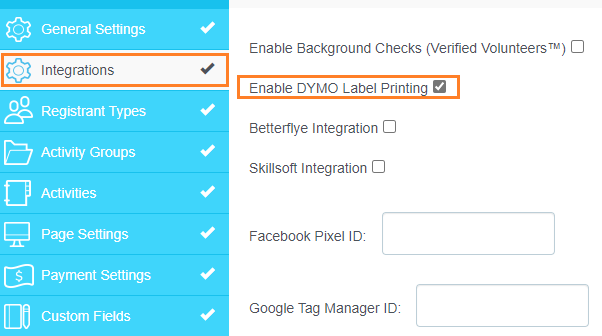
2. Locate and click on the Integrations from the left-side vertical menu
3. Checkmark the option Enable DYMO Label Printing. Then click Save & Continue
4. Label Printing (DYMO) will appear as a new tab on the left-side vertical menu of your site editor.
Click the Label Printing (DYMO) tab to begin.
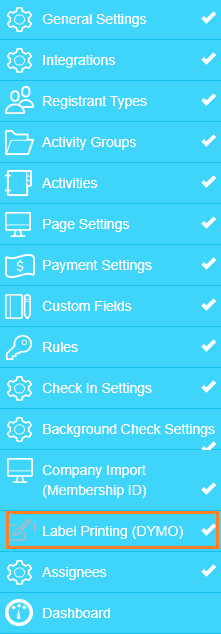
The Label Printing (DYMO) page is where actual configuration is completed. Instructions are presented on the right-side of the page to assist.
5. Create your label within the DYMO Software. Any questions related to DYMO software should be referred to DYMO by accessing their website. DYMO® : Label Makers & Printers, Labels, and More!
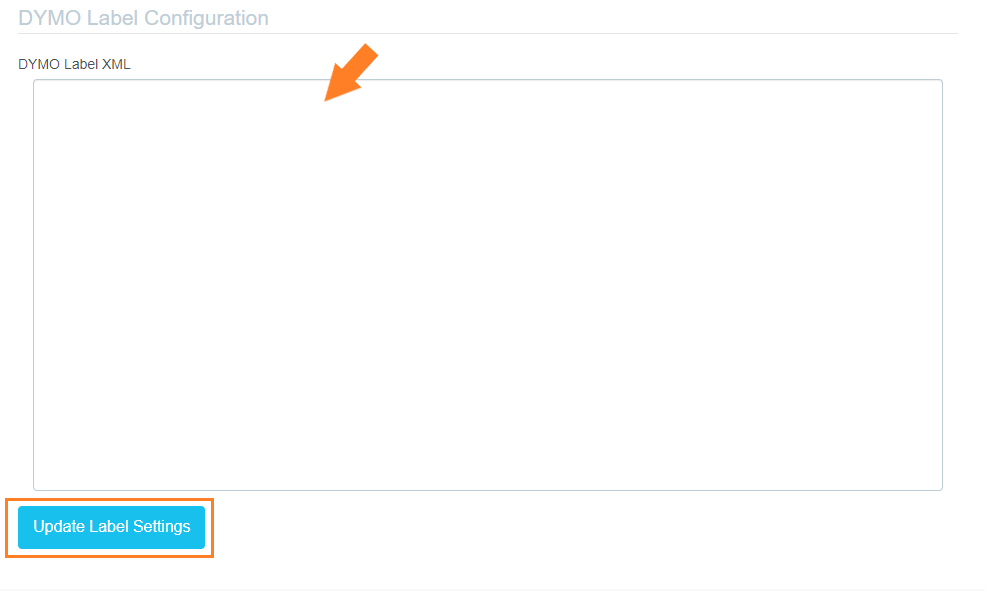
6. Copy + Paste the XML code into the open text box under the DYMO Label Configuration section.
Click Update Label Settings
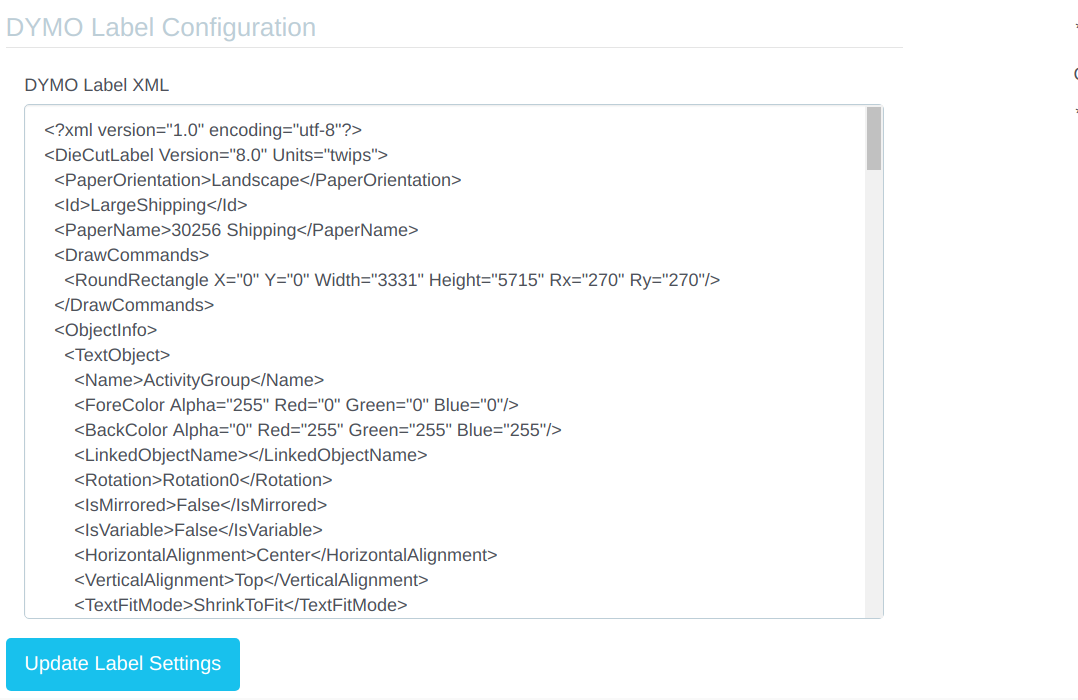
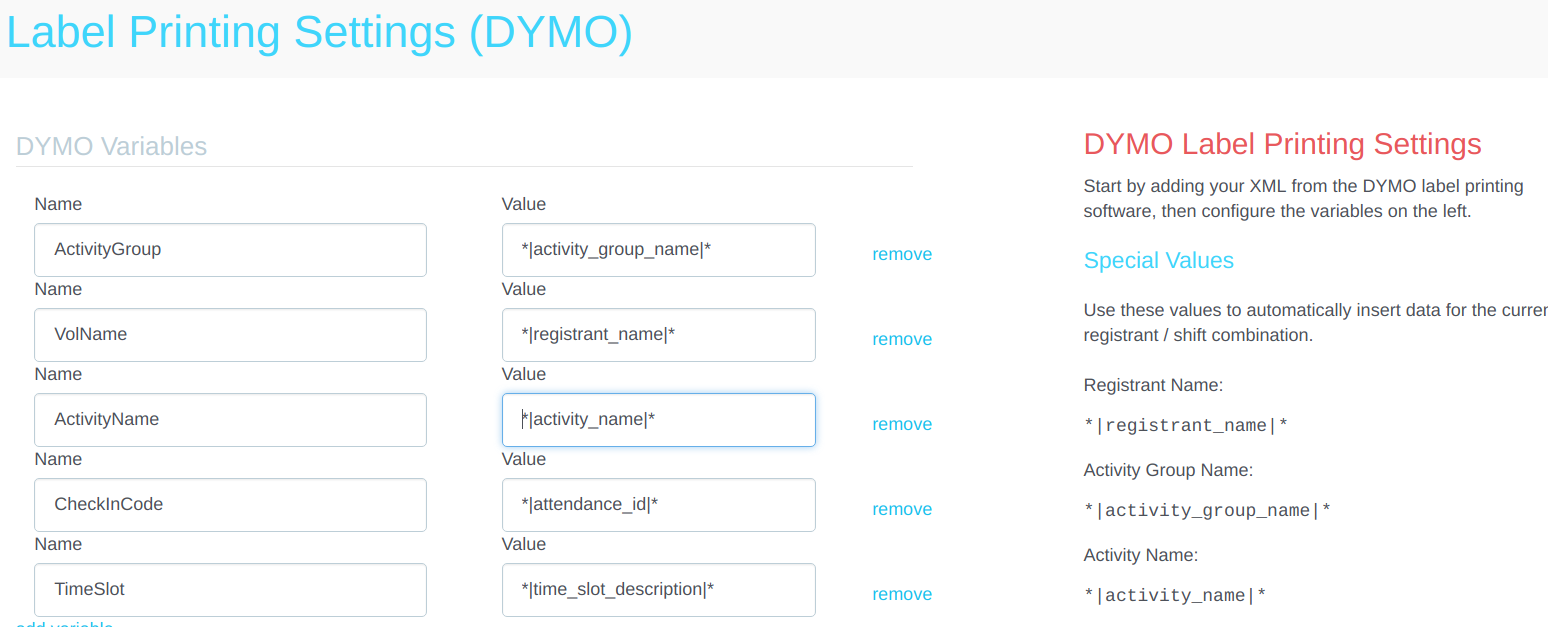
7. Under the DYMO Variables section, configure the variables by matching the name and value fields.
Refer to the example shown below:
To print Labels:
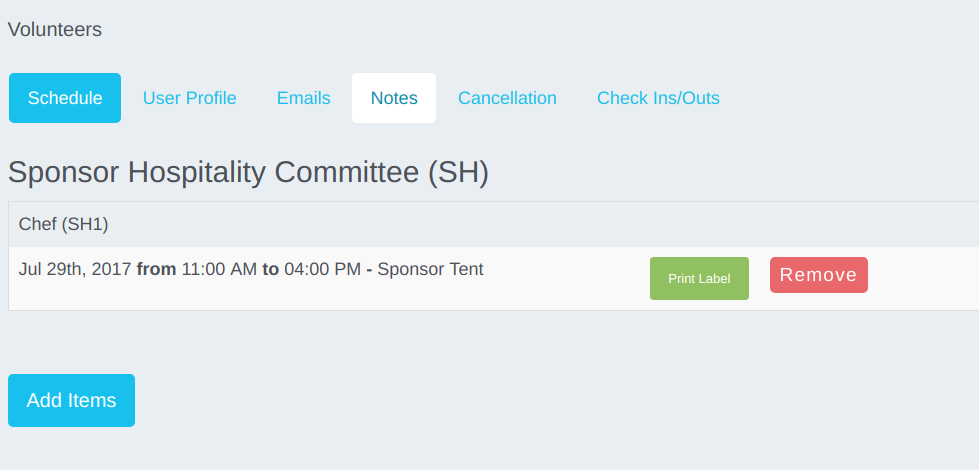
- Locate the registrant's user account and view their registration
- View Schedule on the horizontal menu
- Next to each activity, the option to Print Label is visible and can be clicked to print
Comments
0 comments
Please sign in to leave a comment.